Compatible with Chrome and Edge
Instruction Guide
We have a simple tutorial guide which explains the features of the software extension and what each button inside the extension does. Read our tutorial and welcome guide on how to use the extension to the fullest. Use all the features of this browser software.
If you are interested in other web extensions to install, you might wish to check out the Microsoft Bing Search with Rewards extension.
Microsoft Bing Search with Rewards Extension
It allows you to complete daily offers to get points.
Track the number of points you have currently and the rewards you can redeem with these points.
The ways to get points & get rewarded is search with Bing, browse with Microsoft Edge and shop at the Microsoft and Windows stores to earn rewards.
Sponsored Link:
Other useful extensions
Another extension which would be useful to install is the iCloud bookmarks extension.
It allows to keep your Chrome bookmarks on Windows synced up with the Safari bookmarks on your iPhone, iPad, and Mac.
iCloud will store your website bookmarks so it is accessible even on your iPhone and Mac.
Try these other two extensions and see if it will boost your daily productivity.
Save image to Google Photos with a simple right click!
Simply right click on any photo in your browser and click Save to Google Photos. That's all. You do not need to save it to your computer or anywhere else.
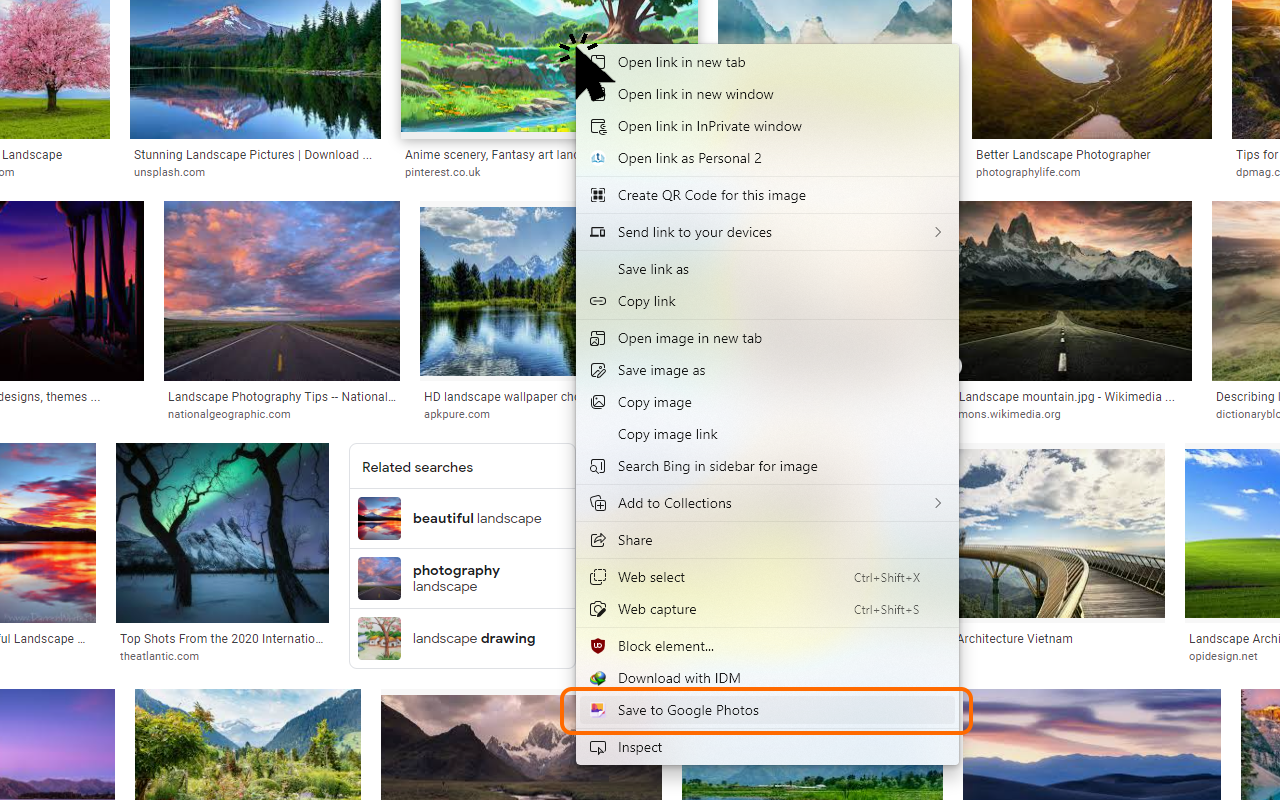
Note: for the first time, you will need to login with your Google Account so the extension can get your permission to save images to your Google Photos.
Your Privacy Guaranteed!
We do not send your photo or Google Photos credential anywhere else. The photo goes straight from your browser to Google Photos server through their Photos API.
The login process is managed by Google. You never give us your Google email or password. The login token can only be used to put photos in your Google Photos, it cannot be used to do see your photos or anything else. The token is stored in your browser and never sent to anyone else but Google.
We cannot sell your information because we have none!
Features:
- Save Images to Google Photos.
- Direct browser to Google server, privacy guaranteed!
What is Google Photos?
Google Photos is a free photo storage app that gives you unlimited storage for photos and videos taken on your Android device or iPhone. It's easy to upload, organize and share your photos, whether they're stored in the cloud or on your phone.
Upload your full resolution photos and videos (up to 16 megapixel) to Google Photos at no cost. You can also store photos up to 2048x2048 pixels.
Organize your pictures with naming suggestions, location maps, automatic groups, and more.
Create collages, animations, movies and more right in the app.
How do I upload photos to Google Photos?
To upload, sign in to your Google Account on a computer and go to photos.google.com/upload . You’ll see an option to start uploading a photo or video from your computer or device. If you’re using a mobile device, open the Google Photos app, tap the + button and choose Select Files (iOS) or Add Files (Android).
What kind of files can I upload?
You can upload JPG, JPEG, BMP and GIF files up to 16 megapixels in size. Also supported are PNG and TIFF file types, as well as multi-page PDFs with images inside them. You can also share entire albums by uploading an HTML file with all its URLs included (example).
There are a few desktop photo editing software options available, and they're often much more powerful than what's built into your phone or tablet. Here's how to use each of them.
Adobe Photoshop Elements
Adobe Photoshop Elements is the most popular desktop photo editor in the world. It's been around for more than 20 years, and there are lots of reasons why people love it:
It's easy to use . The interface is clean, intuitive and simple. It starts with a few quick automated edits that make your photos look great right away, then lets you dive deeper into manual adjustments as you learn more about the program.
You can edit all the images/photos before you upload them to Google Photos
Tutorial:
- Install the Extension
-
After installing the extension, click on the icon
 on the toolbar.

Sponsored Link: